
Making Tax Digital (MTD) is changing the way businesses report tax to HMRC. Learn how to use Xero to connect with HMRC, submit MTD for Income Tax updates and VAT returns, and stay on top of your MTD obligations.
Making Tax Digital for Income Tax (MTD ITSA) is mandatory for sole traders and landlords earning over £50,000 in qualifying gross annual income as of April 2026. Thresholds will be lowered to £30,000 in April 2027 and £20,000 in April 2028.
If you’re eligible for MTD, you’ll need to keep digital records and send updates to HMRC using MTD-compatible accounting software, such as Xero.
Fortunately, you can connect Xero to HMRC for this very purpose. Below, we’ll share how to use Xero accounting software for MTD, including submitting Income Tax and VAT, fixing past errors, and keeping accurate sales data.
- Xero lets you keep digital records, submit quarterly Income Tax updates, and file VAT returns with HMRC.
- Connecting Xero to HMRC is a one-time setup, although you may need to reauthorise the connection from time to time.
- You should reconcile your accounts before filing to ensure your VAT and quarterly updates are accurate and complete.
- Most VAT errors can be corrected on your next return, but larger errors must be reported directly to HMRC.
- You will need to submit quarterly Income Tax updates within one month and two days following the end of each quarter.

Get 90% off Xero for the first six months
Supercharge your small business accounting
In this article, we’ll cover:
What is Making Tax Digital for Income Tax?
Making Tax Digital for Income Tax (MTDITSA) is an initiative set out by the UK government and managed by HMRC. It changes how self-employed people (sole traders) and landlords keep business records and report income to HMRC.
Under MTD for Income Tax, you keep digital records and send quarterly updates and a final declaration to HMRC using MTD-compatible software such as Xero.
Under these new rules, you must log digital records of all business income and expenses through your accounting software. Every quarter, you review a summary of your income and expenses in your software and send it to HMRC. By 31 January following the end of the tax year, you must submit your final declaration.
Who must comply and when?
The rollout of MTD for Income Tax is based on qualifying gross income. As of 6 April 2026, it is mandatory for sole traders and landlords earning over £50,000 in qualifying gross income annually. However, the income threshold is expected to decrease over the next two years:
- 6 April 2027: The threshold drops to cover those earning over £30,000 in gross qualifying income.
- 6 April 2028: The threshold drops further to cover those earning over £20,000 in gross qualifying income.
Navigating these changing thresholds doesn’t mean you need to hire a full-time bookkeeping service. Many business owners choose to manage their everyday finances in software like Xero while working with an accountant for specialist support. This can include setting up the system correctly, reviewing records, checking compliance, and helping ensure your year-end tax position is accurate.
Overview of MTD tasks and pricing in Xero
Before you start using Xero for Making Tax Digital (MTD), it’s helpful to understand the different compliance tasks you’ll need to complete.
While the exact requirements depend on whether you’re managing Income Tax or value-added tax (VAT), Xero brings these processes together in one place.
| MTD task | Where to do it | What you’ll need | Frequency |
|---|---|---|---|
| Set up MTD for Income Tax | Tax > MTD for Income Tax | Xero subscription and Government Gateway credentials | Once during setup |
| Connect Xero to HMRC | Tax > MTD for Income Tax > Get started | Government Gateway ID and permission to authorise | Once (unless reconnection is required) |
| Submit MTD VAT returns | Tax > VAT Return | VAT registration and connected HMRC account | Usually quarterly (or as required by your VAT scheme) |
| Correct a VAT return error | Reporting > All reports > UK VAT Return > Click “Adjust” next to the VAT box you need to change | Details of the original error and HMRC correction rules | As needed |
| Submit quarterly Income Tax updates | Tax > MTD for Income Tax > MTD for IT Overview > To Do > Find the quarter that is due for submission and click “View” | Up-to-date bookkeeping and connected HMRC account | Every quarter |
Note: You can only get the Comprehensive or Ultimate plan if your business is VAT-registered. If it isn’t, you’ll only have access to the Simple, Ignite, and Grow plans.
How to connect Xero to HMRC for MTD
You can connect Xero to HMRC from within Xero. However, before you begin, you should ensure you have:
- Signed up for MTD via your HMRC Government Gateway account
- Your Government Gateway User ID and password ready
- Your VAT/tax details (to make sure that your VAT registration number or National Insurance number in Xero matches HMRC’s records)
It’s also important to note that if you work with an accountant, they can set up MTD for Income Tax on your behalf using an Agent Services Account (ASA). This way, you can take care of the day-to-day bookkeeping – like recording transactions, managing invoices and keeping financial records up to date – while the accountant can review submissions and provide support with compliance and filing requirements.
How to connect Xero to HMRC for MTD for Income Tax
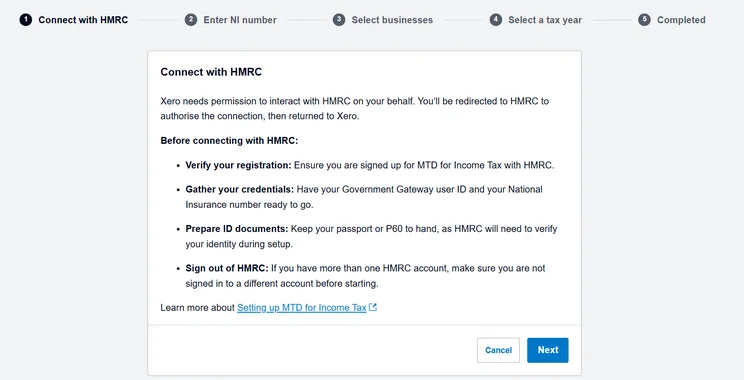
With Xero, you can connect to HMRC in just a few steps:
- In Xero, go to Tax > MTD for Income Tax, click “Get Started” and then “Next”
- After you are redirected to HMRC, log in with your Government Gateway credentials and select “Give permission”.
- Once directed back to Xero, enter your NI number and select your business from the list and the relevant tax year.
Note: HMRC’s authorisation for Xero usually expires periodically – if it does, reconnect by clicking “Connect to HMRC” and sign in using your Government Gateway credentials through the HMRC website.
How to set up MTD for VAT on Xero
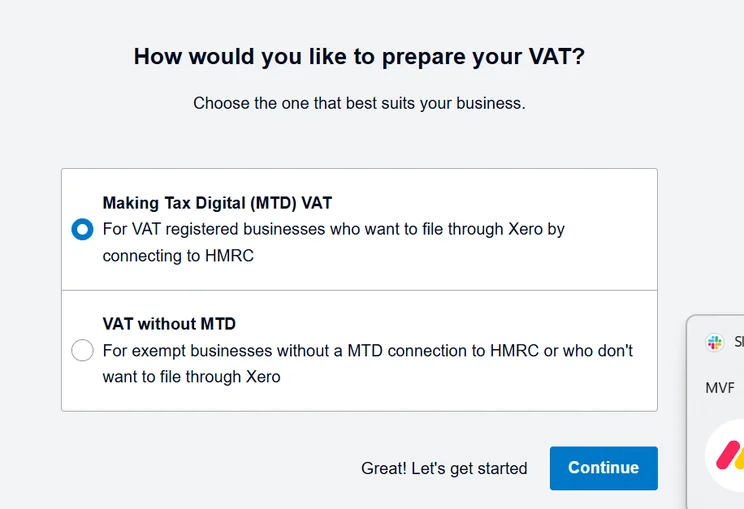
MTD for VAT has applied to all VAT-registered businesses since 2022 and must be submitted to HMRC through an accounting software platform instead of the old online portal. Here’s how to set up MTD for VAT through Xero:
- In Xero, go to Accounting > Advanced > Financial Settings and double-check that your VAT number and tax registration details are correct.
- Go to Tax > VAT Return, click “Connect to HMRC” and then “Continue”.
- After you are redirected to HMRC, sign in with your Government Gateway credentials and select “Grant authority”. You’ll then be redirected back to Xero.
How to handle MTD VAT returns on Xero
Xero helps streamline your VAT returns once your MTD connection to HMRC is active.
If you work with an accountant, this will be a joint effort with different responsibilities. You will need to keep records accurate by reconciling bank accounts, recording transactions, and entering invoices throughout the VAT period. Meanwhile, the accountant reviews the return before submission, including checking for potential errors, identifying any eligible late VAT claims or adjustments, and approving the final submission to HMRC.
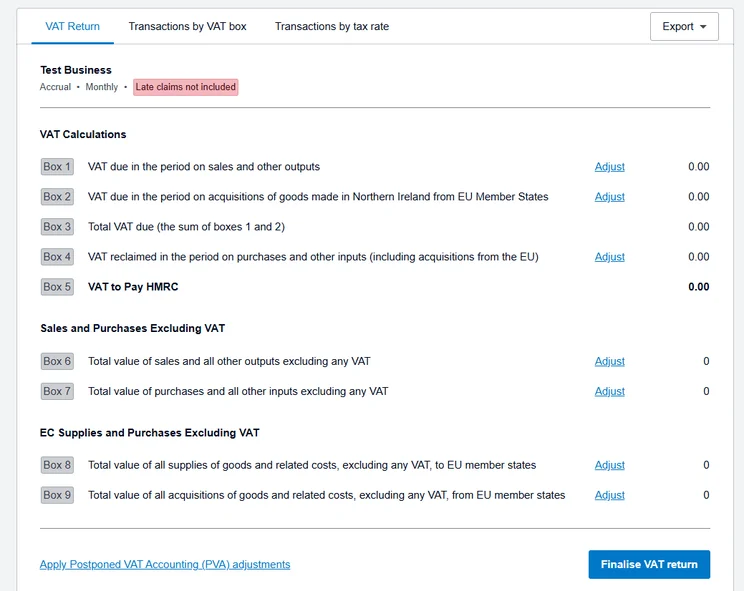
Either way, you should make sure all your bank transactions and accounts receivable/payable for the VAT period are fully reconciled. From there, you’ll need to:
- Go to Reporting > VAT Return and select the open period you want to file.
- Click on individual boxes (such as Box 1 or Box 4) or switch to the Transactions by VAT Box tab.
- Check for any missing VAT rates and incorrectly coded expenses. You should also check the Late Claims tab if Xero has picked up any transactions added after the previous return was filed.
- Once you’ve verified the numbers, click “File with HMRC” and then “Submit”.
Note: If you owe HMRC, you should set up a direct debit or make a bank transfer using the payment reference shown in your HMRC account. If HMRC owes you, they will refund the amount directly to the bank account on file with them.
How to correct an error on a previous VAT return in Xero
HMRC gives you two ways to fix errors if the mistake happened in an accounting period that ended less than four years ago.
One way is to correct the mistake on your next VAT return (self-correction), which you can do if:
- The net value of the error (underdeclarations minus overdeclarations) is £10,000 or less
- The net value of the error is up to £50,000 and is less than 1% of your total turnover (Box 6 figure) on your current return
How it works in Xero: If you forgot to enter a bill or invoice payment and add it to Xero after the previous return was filed, Xero handles Method 1 automatically by putting those late transactions into your open return in the “Late Claims” tab.
Alternatively, you or your accountant must report the error to HMRC if:
- The net error is over £50,000
- The net error is between £10,000 and £50,000 but exceeds 1% of your Box 6 turnover
- The error was made deliberately
To report this error, simply log in to your HMRC Government Gateway account and complete the online VAT error correction form.
Note: Avoid reopening a closed accounting period to amend figures without checking whether the changes will affect a VAT return that’s already been submitted to HMRC. In many cases, minor corrections can be included in your next VAT return instead.
While Xero helps you manage daily record-keeping in one place, an accountant can help you navigate HMRC’s strict error-correction rules so you don’t accidentally underpay tax or trigger non-compliance penalties. It’s best to review larger errors together with an accountant. For example:
- Errors can only be adjusted on your next return if the net mistake is £10,000 or less, or up to £50,000 if it remains under 1% of your total turnover (Box 6). An accountant can calculate this limit to confirm whether self-correction is allowed.
- Errors exceeding the £50,000 threshold (or exceeding 1% of your turnover if over £10,000) and any deliberate errors cannot simply be corrected in Xero and instead must be reported directly to HMRC using their official online VAT error correction service– a process your accountant can draft and submit on your behalf to minimise penalties.
- Changing tax amounts in Xero can have tax implications – speak with your accountant or bookkeeper to make sure you use the right method.. An accountant ensures any manual ledger journals or tax code changes are posted correctly.
What are the penalties for late VAT filing?
HMRC uses a points-based late submission system for MTD VAT returns, including for nil returns (where you have nothing to declare).
You’ll receive one penalty point for every time you submit a return late. These points accumulate until you reach your points threshold, which depends on your filing frequency:
| Filing frequency | Points threshold |
|---|---|
| Monthly | 5 points |
| Quarterly | 4 points |
| Annually | 2 points |
Once you hit your threshold, you will receive a £200 fine. Additionally, every single late return submitted while you remain at the threshold will trigger another £200 fine.
How to ensure your sales data is accurate for MTD compliance
Before submitting quarterly updates or VAT returns to HMRC, you should ensure your records accurately reflect your business income and that any discrepancies have been identified and resolved (this is something you can double-check with your accountant).
If your business processes a high volume of sales or sells through multiple channels, reconciliation can become a little more complicated.
For example, if you run an ecommerce business, online marketplaces, payment providers and POS systems may all report sales differently. Therefore, it’s important to compare the data from these channels against your accounting records regularly.
When reconciling sales on Xero, you should:
- Import sales data from connected systems to reduce manual data entry
- Match sales transactions against bank deposits and payment provider settlements to confirm all income has been recorded
- Check for duplicate, missing, or incorrectly categorised transactions before preparing your return
- Reconcile fees, refunds, discounts and chargebacks separately
- Review VAT rates applied to transactions to ensure they all align with the goods or services sold
- Investigate any unreconciled items quickly
Xero can help automate parts of this, such as bank reconciliation where there’s high confidence, while its real-time reporting helps you know where your business stands.
HMRC has specific rules for importing third-party sales into Xero. Specifically, you are not allowed to copy and paste or manually type figures between systems.
Instead, to be MTD compliant, the best method is to use direct integrations between software.
Connecting apps such as Stripe to Xero (one of 1,000+ connected apps) allows transaction data to flow into Xero while supporting compliance with HMRC’s digital linking rules.
These integrations power automated accounting and bank reconciliation, which helps to match sales, payments, fees, and transactions against account records more efficiently.
Alternatively, you can use the following compliant methods:
- Exporting and importing XML or CSV files
- Linking cells or using formulas within or across spreadsheets (=SUM(), VLOOKUPs, or cross-sheet references)
- Electronically sending data from a spreadsheet into HMRC-compliant bridging software
- Moving data files via email, shared drives, or USB sticks to be directly imported elsewhere
How to submit quarterly updates with Xero
Xero lets you submit quarterly updates to HMRC based on your day-to-day bookkeeping.
Before submitting, make sure all bank transactions, sales invoices, and bills for the quarterly period are fully categorised on Xero. You should also ensure Xero is connected to your HMRC Gateway account under Tax > MTD for Income Tax.
From there, here’s how you can submit quarterly updates to HMRC through Xero, step by step:
- In Xero, go to Tax > MTD for Income Tax in the top navigation bar
- In the “Overview” tab under the “To Do” section, find the quarter that is due and click “View”
- Review the summarised figures and core financial metrics for your business income and tax-deductible expenses
- Enter disallowable expenses, such as client entertainment (like meals, drinks and events), fines and penalties (speeding tickets, parking fines, etc.), and personal costs (meals, personal subscriptions, etc.)
- Click “Send to HMRC” and confirm the declaration prompt
Quarterly deadlines for MTD
MTD for Income Tax runs on specific dates, with submissions due one month and two days after the quarter ends.
| Quarter | Date range | Submission deadline |
|---|---|---|
| Quarter 1 | 6 April–5 July | 7 August |
| Quarter 2 | 6 July–5 October | 7 November |
| Quarter 3 | 6 October–5 January | 7 February |
| Quarter 4 | 6 January–5 April | 7 May |
What happens if you miss your quarterly update deadline?
If you miss an MTD quarterly update deadline, the consequences depend on when the update is missed.
For the first tax year (2026/27), HMRC has a temporary relaxation (“soft landing”) in place for the first year (6 April 2026 – 5 April 2027). This means you will not receive penalty points or fines for late quarterly updates during this period.
That said, the soft landing doesn’t apply to your final annual declaration due by 31 January the following tax year. It also doesn’t cover late payments, so if you fail to pay your actual tax bill on time, late payment penalties will still apply.
For subsequent tax years, missing a quarterly update deadline will directly affect your penalty points total.
A single penalty point is incurred for each missed quarterly deadline. If you reach four penalty points (the threshold for quarterly filing), HMRC issues an automatic £200 fine. Every additional late quarterly update or late year-end submission while you remain at the four-point threshold triggers an additional £200 fine.
Conclusion
MTD doesn’t have to make managing your taxes more complicated. Once Xero is connected to HMRC, you can keep digital records, reconcile transactions, submit VAT returns, and monitor your financial data from one place.
The key to staying compliant is maintaining accurate records throughout the year rather than waiting until a filing deadline approaches. Regularly reconciling your transactions and reviewing your records before submitting to HMRC makes all the difference to help you avoid unnecessary errors.
Whether you’re new to MTD or switching your accounting software, Xero gives you the tools to manage your tax obligations in one place. And with seamless connection to HMRC, you can be MTD-ready while keeping your focus on growing your business.
No. You can use Xero to submit MTD updates yourself, though many businesses also work with an accountant. Many businesses choose to work with an accountant to provide additional support and reassurance, as the can help set up your MTD connection, review your records for accuracy, check that transactions have been categorised correctly, find potential errors or missed claims, and ensure submissions are completed correctly and on time.
This depends on your gross qualifying income. Currently, MTD for Income Tax is mandatory for sole traders earning over £50,000 a year, with the threshold dropping to £30,000 in April 2027 and £20,000 in April 2028.
You should avoid unlocking closed accounting periods. If you add or edit transactions in a previously filed VAT period in Xero, it can cause discrepancies between your accounting software and what HMRC has on file. Instead, leave the period locked and enter the transaction with its original date on your next open VAT return.
Yes, but you shouldn’t. Unreconciled transactions will not be included in Xero’s automated tax calculations. This means your tax liability will be inaccurate, which can lead to penalties for underreporting or missing tax deductions.
Payment gateways deduct transaction fees and process refunds before transferring the remaining balance to your bank account. If you record the net deposit as sales income, you’ll understate your total revenue and your merchant processing fees won’t be recorded as tax-deductible business expenses.
Startups.co.uk is reader-supported. If you make a purchase through the links on our site, we may earn a commission from the retailers of the products we have reviewed. This helps Startups.co.uk to provide free reviews for our readers. It has no additional cost to you, and never affects the editorial independence of our reviews.


